


The Hidden Cost of Inactive Computers
August 5, 2026 | LabStats Insights
5 min
In higher education IT, not every problem announces itself with a ticket.
Some issues are obvious: a lab computer will not start, a student cannot access software, or a classroom device needs urgent support. Others are much quieter.
A computer stops checking in. A workstation is unplugged. A device is moved, replaced, or decommissioned, but the system view does not reflect that change. On paper, the computer may still appear to be part of the environment. In reality, it may no longer be active, available, or reporting.
That is the hidden cost of inactive computers.
Inactive devices can create gaps in visibility, slow down troubleshooting, distort planning, and make it harder to understand whether your campus computing environment is truly ready to support students, faculty, and staff.
For institutions managing labs, libraries, classrooms, shared learning spaces, and distributed devices, identifying inactive computers is an important part of maintaining accurate data, dependable access, and confident technology planning.
Why are inactive computers a problem for higher education IT?
Inactive computers create uncertainty.
If a computer is not checking in, it becomes harder to know whether it is still available, still connected, still in the right place, or still supporting users. That uncertainty can affect several areas of campus technology management.
Inactive computers can distort planning
Planning decisions depend on accurate device data.
If inactive computers remain counted as usable resources, it can become harder to understand true availability across labs, classrooms, libraries, and shared spaces. A room may appear to have more usable computers than it really does. A location may look better equipped than it actually is. A refresh plan may be based on outdated assumptions.
Over time, that can affect hardware planning, space planning, budget conversations, and student access.
Inactive computers can hide operational issues
A computer that stops checking in may indicate something simple, such as a device being powered off. But it may also suggest that a machine has been moved, unplugged, removed, replaced, or disconnected from the systems that help you manage it.
Without a regular way to surface these devices, teams may only discover the problem during a manual audit, a support request, or a planning review.
Inactive computers can create inventory gaps
Strong IT asset management depends on knowing what devices exist, where they are, and whether they are active.
This is also reflected in broader asset management guidance. For example, CIS Control 1 focuses on inventorying, tracking, and correcting enterprise assets, while NIST guidance on IT asset management emphasizes the importance of understanding what assets exist, where they are, and how they are being used.
For higher education, that principle is especially important because devices are often spread across many rooms, buildings, campuses, and departments.
Inactive computers can create hidden cost
The cost of an inactive computer is not always the device itself.
It can be the time spent searching for it. The planning decisions based on inaccurate data. The support effort required to investigate it later. The unused space it occupies. The budget tied up in hardware that may not be supporting demand.
Inactive computers can also hide opportunities to clean up inventory, reallocate resources, or improve the accuracy of reporting before larger decisions are made.

What is an inactive computer?
An inactive computer is a computer that has not reported into LabStats within a selected timeframe.
The LabStats client reports in when a computer is powered on and connected to the internet. If a computer has not checked in, it may be offline, unplugged, relocated, decommissioned, missing, or it may no longer have the LabStats client installed.
That does not always mean there is an urgent issue. A computer may be inactive because a space is temporarily unused, a device is being serviced, or a lab is between academic sessions. But when a computer has not checked in for a longer period, it raises an important question:
Is this device still where it should be, doing what it is supposed to do?
That question matters because inactive computers can quietly weaken the accuracy of the data used for planning, support, and resource decisions.
Why do computers become inactive?
Computers can become inactive for several reasons. Some are routine. Others may point to a bigger issue that needs investigation.
Common causes include:
- The computer is powered off for an extended period.
- The device is unplugged or disconnected from the network.
- The computer has been moved to another location.
- The device has been decommissioned or replaced.
- The LabStats client has been removed.
- The computer is missing or no longer in service.
- The device is in an underused area and has not been needed recently.
In shared campus environments, these situations are easy to miss. Devices move. Spaces change. Labs are refreshed. Hardware is replaced. Temporary changes become permanent. Over time, a few inactive computers can become a larger visibility problem.
That is why tracking whether computers are still checking in is not just a technical detail. It is part of maintaining a reliable, accurate picture of your technology estate.
How do you identify inactive computers across campus?
To identify inactive computers, you need a reliable way to understand which devices have stopped reporting within a meaningful timeframe.
That usually means looking at signals such as:
- Last check-in date
- Power session activity
- Device group or location
- Whether the computer is assigned correctly
- Whether the device is still expected to be active
- Whether the management client is still installed
- Whether the device has been moved, replaced, or decommissioned
The timeframe matters.
A computer that has not checked in for seven days may not require the same response as a computer that has been inactive for six months. Some institutions may want to review inactive devices weekly. Others may want to focus on longer periods such as one month, three months, six months, or one year.
The key is to choose a threshold that matches your environment and review process.
For example, a short threshold may help identify operational issues quickly. A longer threshold may be more useful for planning, inventory cleanup, or hardware review.
What should you do when you find inactive computers?
Finding inactive computers is only the first step. The real value comes from deciding what to do next.
Common follow-up actions include:
- Confirming that the device is powered on
- Checking that the computer is connected to the internet
- Verifying that the LabStats client is still installed
- Confirming whether the computer has been moved
- Checking whether the device has been decommissioned or replaced
- Reviewing whether the device should still be counted as available
- Exporting a list of inactive computers to coordinate follow-up work
The right action depends on the reason the computer is inactive.
Some devices may need a simple check. Others may need to be reconnected, updated, reassigned, removed from planning assumptions, or reviewed as part of a broader refresh or inventory process.
The important thing is to avoid letting inactive computers remain invisible.

How LabStats Inactive Computers Insight helps
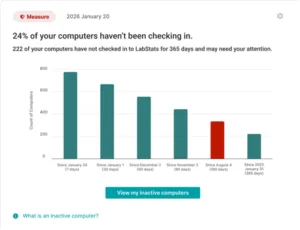
The Inactive Computers Insight helps identify computers that have not checked in to LabStats within the timeframe you choose.
Instead of manually searching for devices that may have gone quiet, the Insight brings the issue forward in the Insights Feed when inactive computers are detected. It shows the scale of the issue, helps you understand how long computers have been inactive, and gives you a direct path to investigate.
When you select View my inactive computers, LabStats opens Computer Manager with the relevant inactive computers already filtered according to your settings. From there, you can review affected devices and decide what action is needed.
The Insight can help answer practical questions such as:
- Which computers have not checked in recently?
- How long have they been inactive?
- Are these devices offline, unplugged, moved, decommissioned, missing, or no longer running the LabStats client?
- Should these devices still be counted as available?
- Do they need follow-up from IT, support, facilities, or another team?
The Inactive Computers Insight is also configurable. You can choose the inactivity threshold that matters to your environment and set notification frequency based on how often you want to be informed. Email notifications can help keep the issue visible, while the in-product Insight gives you a place to review the affected computers when conditions are met.
If no inactive computers are detected, the Insight does not need to create unnecessary noise.
That balance is important. The goal is not to add more reporting work. The goal is to make the right devices easier to find, review, and act on.
Inactive Computers Insight
How this connects to LabStats Insights
Inactive Computers Insight is part of the wider LabStats Insights experience.
LabStats Insights helps surface automated reports, alerts, and recommendations inside the Insights Feed, giving you a clearer way to understand what needs attention across devices, software, usage, and health.
If you are new to LabStats Insights, start with From Insight to Action: A Guide to LabStats Insights for a broader overview of how the Insights Feed works and how individual Insights help turn campus IT data into clearer next steps.
You may also find these related resources helpful:
- LabStats Hardware Management, for understanding how LabStats supports endpoint visibility and hardware tracking across campus.
- Optimize Labs & Learning Spaces, for guidance on using LabStats data to understand device usage, underused resources, and student access.
See LabStats Insights in action
Inactive computers are one example of a wider challenge: important signals can be easy to miss when they are spread across many reports, devices, rooms, and locations.
In our live webinar, From Insight to Action: How Higher Ed IT Can Move from Reporting to Proactive Decisions, we will explore how LabStats Insights helps surface those signals through the Insights Feed.
Join us on August 12 to see how LabStats Insights can help you identify what needs attention across devices, software, usage, and health.
Get Started
Inactive computers can quietly create gaps in visibility, planning, and operational confidence.
The Inactive Computers Insight helps bring those devices back into view, giving you a clearer way to identify what may need attention and take the next step.
To see how LabStats Insights can support your institution, get started by booking a demo.
Work With Us
LabStats specializes in helping IT leaders reduce spend and get their budgets right.
