

Why Outdated Operating Systems Need Visibility
November 24, 2026 | LabStats Insights
5 min
Outdated operating systems can be easy to ignore until they become difficult to manage.
A computer may still turn on. Users may still be able to log in. Applications may still open. From the outside, the device may appear to be working as expected.
But if the operating system is approaching or past its official end-of-life date, the risk profile changes.
Security updates may stop. Compatibility patches may no longer be provided. New applications may not behave as expected. Support teams may need to spend more time maintaining devices that are no longer aligned with current standards.
In higher education environments, where computers are spread across labs, classrooms, libraries, shared spaces, departments, and virtual environments, that lack of visibility can become a bigger problem.
The challenge is not only knowing that outdated operating systems exist.
The challenge is knowing where they are, how close they are to end-of-life, and what needs to happen next.
What Is an Outdated Operating System?
An outdated operating system is an operating system that is approaching or has passed its official end-of-life date.
End-of-life, often shortened to EOL, is the point at which a software vendor stops providing standard support, security updates, compatibility patches, or other ongoing maintenance for a specific operating system version.
Once that date approaches, the device may still function, but it becomes harder to rely on the operating system as a secure, supported foundation. That distinction matters.
A computer running an older operating system is not necessarily broken. It may still be useful. It may still be part of a valid teaching, research, or operational workflow. But it does need visibility, because unsupported systems can create risks that are not immediately obvious to users.
The question is not simply:
Is this device still working?
The better question is:
Is this device still running a supported operating system?
Why Outdated Operating Systems Remain in Managed Environments
Outdated operating systems often remain in managed environments for understandable reasons.
Some devices are tied to specialist software that has not yet been validated on a newer operating system. Some support academic programs with specific technical requirements. Some are used infrequently and may be missed during upgrade projects. Others may be waiting on hardware refresh, budget approval, or departmental coordination.
In higher education, these situations are common.
A device may be located in a specialist lab. A virtual machine may support a legacy workflow. A computer may be used for a specific course only once or twice a year. A shared device may fall outside the main upgrade path because ownership is unclear or because the space is managed differently from the rest of the estate.
Outdated operating systems may remain because of:
- Specialist software dependencies
- Hardware limitations
- Deferred refresh cycles
- Budget constraints
- Legacy teaching or research requirements
- Devices in low-use or hard-to-audit locations
- Virtual machines that are overlooked during lifecycle reviews
- Exceptions that were temporary but became permanent
- Missed devices during wider operating system upgrade projects
Not every older operating system means immediate action is required. But every unsupported or soon-to-be unsupported operating system should be visible enough to review.

Why OS Visibility Matters
Operating system visibility matters because it helps you understand where risk, support complexity, and lifecycle pressure may be building.
Without a clear view of outdated operating systems, it becomes harder to answer important questions:
- Which computers are approaching end-of-life?
- Which computers are already past end-of-life?
- Which operating systems are still supported?
- Which devices need upgrade planning?
- Which devices may need hardware refresh?
- Which locations or groups have the highest concentration of risk?
- Which systems should be prioritized before support ends?
This is especially important in distributed environments.
A small number of outdated computers in one room may be easy to handle. A mix of outdated operating systems across multiple buildings, departments, labs, and virtual environments is much harder to manage manually.
Visibility turns the problem from a vague concern into a workable plan.
It helps you move from:
“We probably have some old operating systems out there.”
to:
“Here are the devices that need review, and here is how urgent each one is.”
Security, Support, Consistency, and Lifecycle Risk
Outdated operating systems can affect several areas of campus technology management.
Security risk
When an operating system reaches end-of-life, it may no longer receive the updates needed to protect against newly discovered vulnerabilities. That can create exposure, especially on shared or network-connected machines.
For colleges and universities, where devices may be used by many different people throughout the day, unsupported operating systems can become an unnecessary risk.
Support complexity
Older operating systems can be harder to support.
Troubleshooting may take longer. Vendor guidance may be limited. Compatibility issues may become more common. Support teams may need to maintain exceptions, workarounds, or separate processes for devices that no longer match the standard environment.
Application compatibility
As operating systems age, application support can become less predictable.
New versions of software may not install correctly. Existing tools may stop receiving updates. Vendors may stop testing against older operating systems. This can affect both general-purpose software and specialist applications used in teaching or research.
User experience
Users may not always know that an operating system is out of date. They may simply experience slow performance, missing features, application errors, or inconsistent behavior between devices.
That inconsistency can reduce confidence in shared computing spaces.
Lifecycle planning
Outdated operating systems are often connected to broader lifecycle decisions.
A device may need an operating system upgrade. It may need hardware replacement. It may need to be removed from service. It may need a temporary exception while a department prepares for change.
Without visibility, those decisions can arrive late. With visibility, they can be planned.
How to Identify Devices Running Older Operating Systems
To identify outdated operating systems, you need more than a list of devices.
You need to compare each computer’s operating system against trusted end-of-life data and understand whether the operating system is supported, approaching end-of-life, or already past end-of-life.
Useful signals include:
- Computer name
- Hostname
- Group, lab, or location
- Last seen date
- Operating system name
- Operating system version
- Official end-of-life date
- Days until end-of-life
- Days since end-of-life
- Whether the device is physical or virtual
- Whether the system needs upgrade, replacement, or further review
It is also helpful to group devices into clear lifecycle categories.
A device approaching EOL may still have time for planning. A device already past EOL may require more urgent review. A supported system may not need action right now, but it still provides useful context when looking at the wider environment.
This kind of categorization helps prioritize work.
It also helps communicate the issue more clearly to stakeholders who may need to support upgrade planning, budget requests, refresh cycles, or exceptions.
What Should You Do Once You Find Outdated Operating Systems?
Finding outdated operating systems is the first step. The next step is deciding what each device needs.
Common actions include:
- Upgrading the operating system
- Planning a hardware refresh
- Replacing devices that cannot support a newer OS
- Reviewing whether the device is still needed
- Checking for specialist software dependencies
- Validating whether a temporary exception is required
- Prioritizing devices that are already past EOL
- Reviewing devices approaching EOL before the deadline arrives
- Exporting affected devices for follow-up, budgeting, or remediation planning
The right action depends on the device and its role.
A high-use lab computer running an unsupported operating system may need immediate attention. A specialist workstation may require a staged plan to protect academic workflows. A virtual machine may need review to determine whether it should be upgraded, rebuilt, or retired. A rarely used device may be a candidate for decommissioning.
The goal is not to treat every outdated operating system the same way.
The goal is to make sure every at-risk device is visible, understood, and moving toward an appropriate decision.

How LabStats Old OS Insight Helps
The Old OS Insight helps identify computers running operating systems that are approaching or past their official end-of-life date.
It compares each computer’s operating system against trusted end-of-life data and surfaces devices that may require review. The Insight can evaluate Windows operating systems, macOS operating systems, and virtual machines, helping provide visibility across both physical and virtual environments.
When the Insight appears, it groups computers into three categories:
- Approaching EOL: The operating system’s end-of-life date falls within the selected threshold window.
- Past EOL: The operating system’s end-of-life date has already passed.
- Supported: The operating system’s end-of-life date is outside the selected threshold or is not present.
This gives you a quick way to understand how many computers may need attention and how urgent the issue may be.
When you select Export list of at-risk computers, LabStats opens the Insight Details page, where you can review affected computers and export the report as a CSV file.
The report can include details such as:
- Computer name
- Hostname
- Group
- Last seen date
- Operating system name
- Operating system version
- End-of-life date
- Days to or since end-of-life
That information can support upgrade planning, hardware refresh conversations, risk review, and operational follow-up.
The Old OS Insight can help answer practical questions such as:
- Which computers are running operating systems approaching end-of-life?
- Which computers are already past end-of-life?
- Where are those devices located?
- Which groups or environments are most affected?
- How much time remains before support ends?
- Which devices should be prioritized for upgrade or refresh?
- Which systems may require exceptions or specialist review?
Notification behavior and configurability depend on the LabStats tier available to the account. Where supported, users can choose notification frequency and configure how far in advance they want to be alerted before an operating system reaches end-of-life. Email notifications can be turned off, while in-product Insights remain available when applicable.
If no computers are approaching or past end-of-life within the configured threshold, the Insight does not appear and no email notification is sent.
That helps keep attention focused on the systems that actually need review.
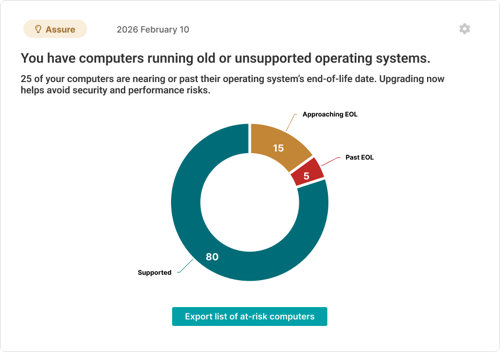
Old OS Insight
How This Connects to LabStats Insights
The Old OS Insight is part of the wider LabStats Insights experience.
LabStats Insights helps surface automated reports, alerts, and recommendations inside the Insights Feed, giving you a clearer way to understand what needs attention across devices, software, usage, and health.
If you are new to LabStats Insights, start with From Insight to Action: A Guide to LabStats Insights for a broader overview of how the Insights Feed works and how individual Insights help turn campus IT data into clearer next steps.
You may also find these related resources helpful:
- Four Actions for Smarter Software Deployment, for understanding how usage evidence can support better optimization decisions.
- Why Inventory Accuracy Matters, for understanding how group assignments support better reporting and software deployment analysis.
- The Hidden Cost of Inactive Computers, for understanding how devices that stop checking in can affect visibility, planning, and operational confidence.
- LabStats Hardware Management, for understanding how LabStats supports endpoint visibility and hardware tracking across campus.
- Optimize Labs & Learning Spaces, for guidance on using LabStats data to understand device usage, underused resources, and student access.
See LabStats Insights in action
Outdated operating systems are one example of a wider challenge: important risk and lifecycle signals can be easy to miss when they are spread across devices, locations, operating system versions, and support plans.
In our webinar, From Insight to Action: How Higher Ed IT Can Move from Reporting to Proactive Decisions, we explore how LabStats Insights helps surface those signals through the Insights Feed.
Watch on demand to see how LabStats Insights can help you identify what needs attention across devices, software, usage, and health.
Get Started
Outdated operating systems can quietly increase security, support, compatibility, and lifecycle risk.
The Old OS Insight helps bring at-risk devices into view, giving you a clearer way to plan upgrades, review exceptions, and maintain a more secure and supported computing environment.
To see how LabStats Insights can support your institution, get started by booking a demo.
Work With Us
LabStats specializes in helping IT leaders reduce spend and get their budgets right.
